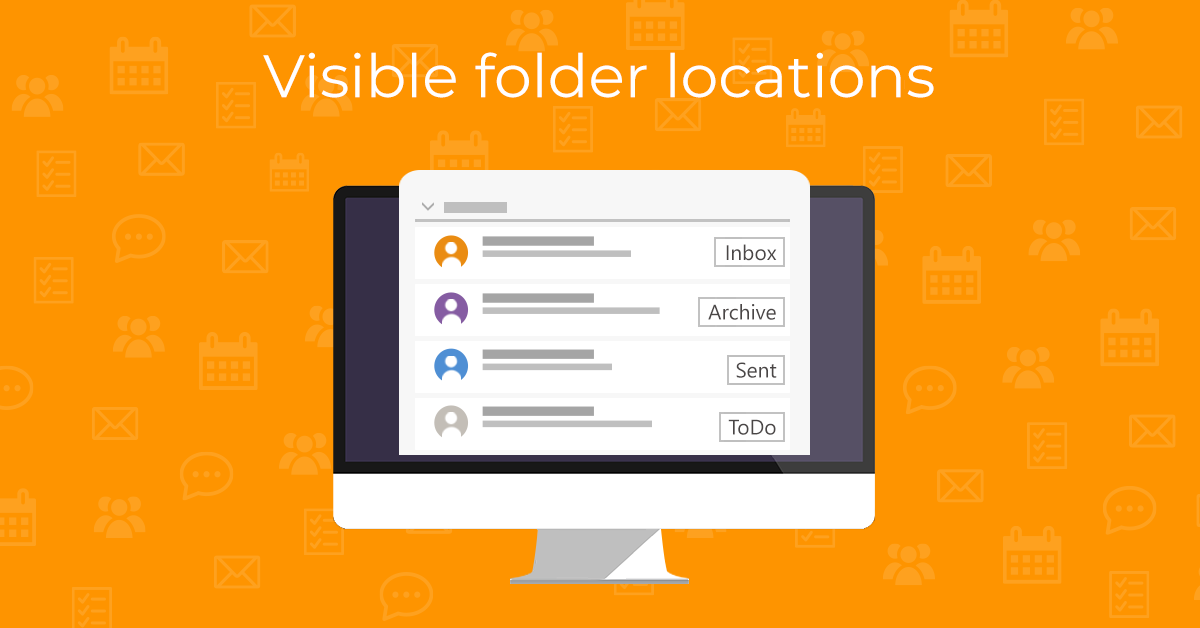
In the eM Client 10.4 update, we have implemented new methods for easily locating emails. Now you will see the folder name in threads, message details, and search results. In this article, we will explain how folder name boxes can be useful - and how to disable this feature in case it doesn’t fit your workflow.
Folder name in message detail
The folder box is always visible in the upper-right corner of the message preview’s header, no matter what Conversations settings you use. It will show the full path once hovered over:
Note: For Google accounts, you will not see the folder name box, as it is already covered by Gmail tags (labels), corresponding to the folders (labels) the messages are stored in.
The folder name box is also displayed in Conversations, helping you quickly distinguish where each message from the thread is actually stored:
In previous versions, you could only see the folder name in the message list with the Conversations feature disabled, and even then, it was not the default. It had to be manually added to the visible columns.
To show the Folder in the message list, right-click the top of the list, select “Columns configuration”, and add “Folder” to the displayed columns. Or hide it by removing it from the visible columns.
Folder name in search
The Search feature now shows the message location in the search results list, in the Folder column. You will be able to see this in the “Messages on the bottom” layout and with the messages panel disabled. This is especially convenient if you use the search in the “All folders” option:
How to hide the folder name box
If you do not want to see the folder boxes in message detail or in Conversations, go to Settings > Mail > Read and disable the “Show folder in message detail” option.
Folder name boxes in the eM Client mobile app
When using the mobile app, the folder box is visible in the message detail.
To enable or disable this feature, head to Settings > Mail > Read and look for the “Show folder in message detail” option:
Folder name boxes are a neat feature that helps users quickly pinpoint a message’s location, making browsing your inbox or looking up emails fast and hassle-free. And if you have no need for them? Turn this feature off in seconds and enjoy using the eM Client app exactly the way you prefer.
New to eM Client?
Try it out! It's free and fabulous.
If you’re ready for more, buy Personal or Business
license and enjoy:
And in the meantime, check out our YouTube channel for how-to videos.